Beginner guide
How to use OpenCode for free: a beginner’s guide with Lyre
You can start using AI on a project without buying an AI subscription. OpenCode offers access to Big Pickle and a rotating selection of free models. You can use OpenCode directly, or choose it inside Lyre to work with a project through a visual workspace.
Free OpenCode models right now
Last checked: October 4, 2026. These entries are listed as free in OpenCode Zen’s official pricing.
- Big Pickle: start here. This is the model tested in the Lyre walkthrough below.
- Space Bunny Free
- LongCat 2.5 Preview Free
- Fledge Alpha Free
- MiMo-V2.6-Flash Free
- MiMo-V2.5 Free
- Ling 3.1 Flash Free
- Ling 3.0 Flash Fin Free
- Nemotron 3 Ultra Free
- Nemotron 3.5 Lightning Free
- Muse Spark 1.3 Contributor Free
Also listed as free: Jev 1.13 Free, a specialized model for structured decisions. Use a coding/chat model above for this walkthrough.
Choose the OpenCode Zen entry in the model picker. Offers can end, and model-specific data terms apply; use the pricing link to check changes after the date above. Only Big Pickle was exercised in this guide.
This guide starts with the basics, then walks through opening a folder, selecting Big Pickle, asking your first question and checking a small change. The screenshots show the installed Lyre 0.1.5 app on macOS, captured on October 4, 2026. Layouts and available models can change.
What is OpenCode?
OpenCode is an open source coding agent. You give it a request in ordinary language, and it can read files, explain a project, suggest changes, edit code and run tools. You do not have to know the right programming vocabulary to ask your first question.
There are three different pieces here:
- The model produces the AI response. Big Pickle is one choice.
- OpenCode connects that model to your project and tools, so it can do more than answer a chat message.
- Lyre gives you a workspace for the conversation, your files, terminals and supported app previews. In this walkthrough, Lyre runs the installed OpenCode agent on your computer.
A request such as “Explain how this button works” can become a short cycle: OpenCode reads the relevant file, asks the model what to do next, and shows you an explanation. For an editing task, that cycle can also include changing a file and checking the result.
What does “free” mean?
OpenCode’s Zen service includes paid models and promotional free models. Big Pickle is currently free; it is a “stealth” model, so this guide does not guess which model or company is behind it. The offer is time limited. Check the current Zen pricing before choosing a model.
Start with Big Pickle. You do not need to configure the whole collection. In our clean OpenCode 1.18.32 test, it answered with no saved provider credentials or API key, and OpenCode reported a model cost of $0. That establishes the tested free route, not unlimited usage or a guarantee for every account and region.
OpenCode Go is a paid plan. You do not need to buy it for this tested Big Pickle route. A model picker can also contain paid Zen models and models from accounts you already connected. Select the intended free model explicitly.
Your project is local; the free AI is online
Your project files and OpenCode’s tools run on your computer. Big Pickle and the other Zen models are hosted online: prompts and relevant project content go to the service, and you need an internet connection.
Free access also has data-use conditions. OpenCode says Big Pickle’s free-period data may help improve the model. NVIDIA’s free endpoints are for trial use and exclude confidential or personal data; Muse’s Contributor option permits training use. Review the model’s privacy terms before using private work.
Use a small learning project first. If your goal is AI inference entirely on your computer, follow our separate local-model guide.
Step 1: install OpenCode on the computer with your project
For the visual walkthrough, get Lyre if you have not installed it yet. If you prefer the terminal, you can use the direct OpenCode route later in this guide.
For Lyre’s OpenCode integration, install the OpenCode command-line tool on the computer that holds the project. Installing only its desktop app is not the same setup. A terminal is an app where you type commands: Terminal on macOS, for example, or PowerShell on Windows.
If you already have Node.js and npm installed, OpenCode documents this command:
npm install -g opencode-ai
Then check that the command is available:
opencode --version
If your computer says it cannot find npm, choose an installation method
from
OpenCode’s official installation guide.
It includes macOS, Linux and Windows options; you do not need to try all of them. On
Windows, follow its Windows guidance, including WSL where appropriate. Keep OpenCode and
the project in the environment Lyre can actually access.
OpenCode’s own desktop interface is another option if you want to use OpenCode independently. The next steps show the Lyre route.
Step 2: open a project in Lyre
A project can be an existing website, a repository you downloaded, or a folder for something new. You do not have to publish it or move it into cloud hosting first.
In Lyre, use Add project. Choose Browse folders for an existing folder, Copy a project for a Git repository, or Create a blank project to start fresh. Check the target computer before choosing the folder.
You can
download the starter project,
unzip it and choose its Hello-OpenCode folder, or use your own project.
For our example, I opened that tiny folder. It has an index.html webpage
and a README.md explaining how to try it. Lyre also prepared a preview
script. Start a New workspace, choose that project, keep
Local for this simple example and select
Change this app. A workspace is where you keep the related conversation
and tools together.
Opening a project for an agent does not mean every project can run immediately. An existing app may still need its own dependencies or a supported preview setup. You can ask OpenCode to explain those requirements before installing anything.
Step 3: choose OpenCode and Big Pickle
For the current setup steps, follow connecting a coding agent in Lyre.
Click the model name below Lyre’s message box. Open OpenCode, search
for Big Pickle, and choose the entry labelled
OpenCode Zen. In OpenCode’s configuration, that model is
opencode/big-pickle.
You can search for free to browse more options. Read the service label too: our picker shows both Zen and Go entries. Big Pickle itself does not have “free” in its name.
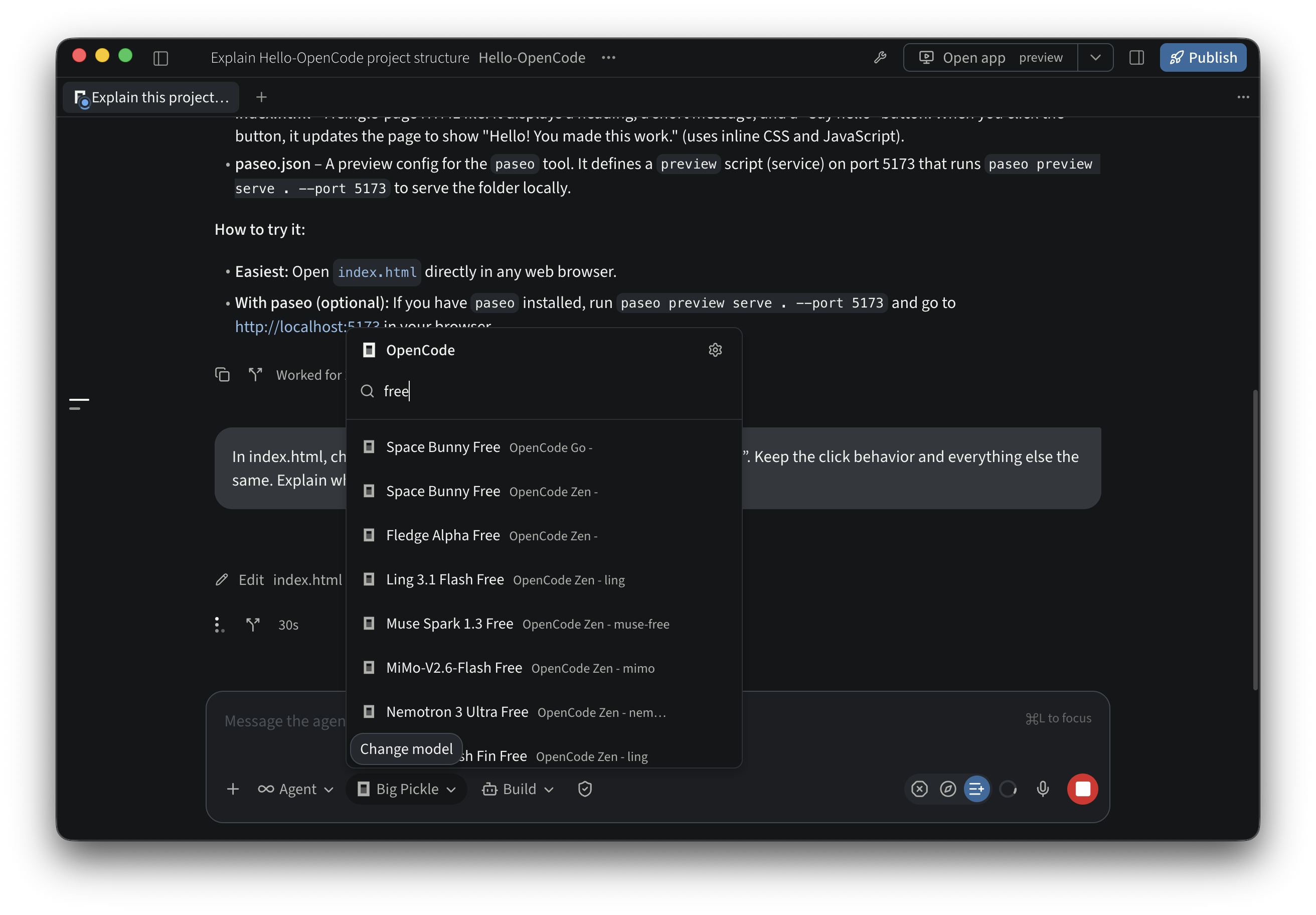
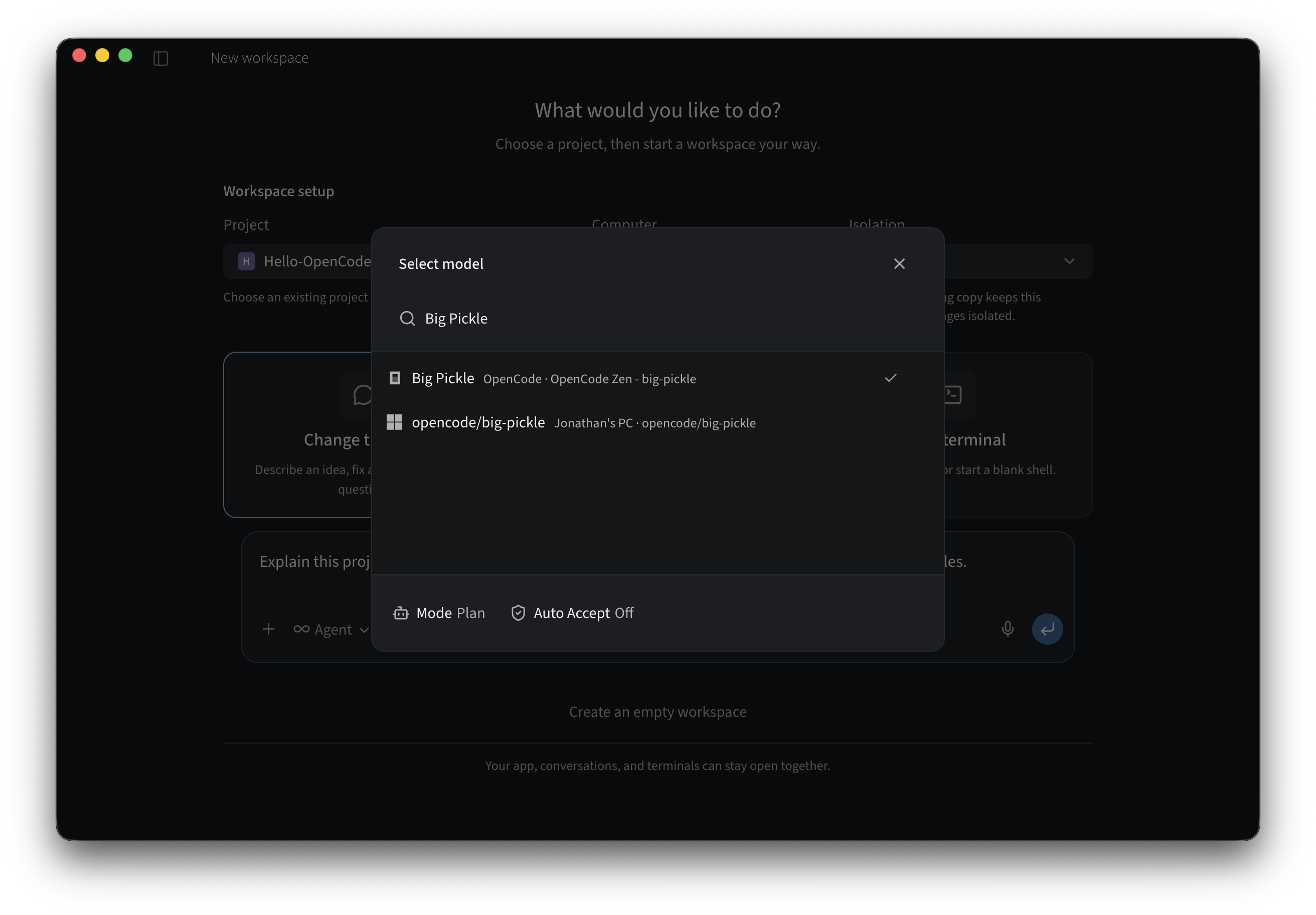
The model belongs to the selected conversation. Choosing Big Pickle is what directs this conversation to the tested free model; merely installing OpenCode does not make every model in the list free.
If OpenCode is missing from the picker, check that its command-line tool is installed on the selected computer and that Lyre’s provider check can find it. In Settings, expand Computers, check the selected computer, then open AI & agents → Providers for its setup status in the captured 0.1.5 build. Newer layouts call this section Agent software. Refresh the provider list after installation if needed.
Step 4: ask a question before making changes
Choose Plan in the agent’s mode controls and leave Auto Accept off while learning. Plan is intended for analysis and planning; read any permission requests before approving them. OpenCode describes the available modes in its agent guide.
Try this message:
Explain this project in plain English. What does each file do,
and how do I try it? Do not change any files.
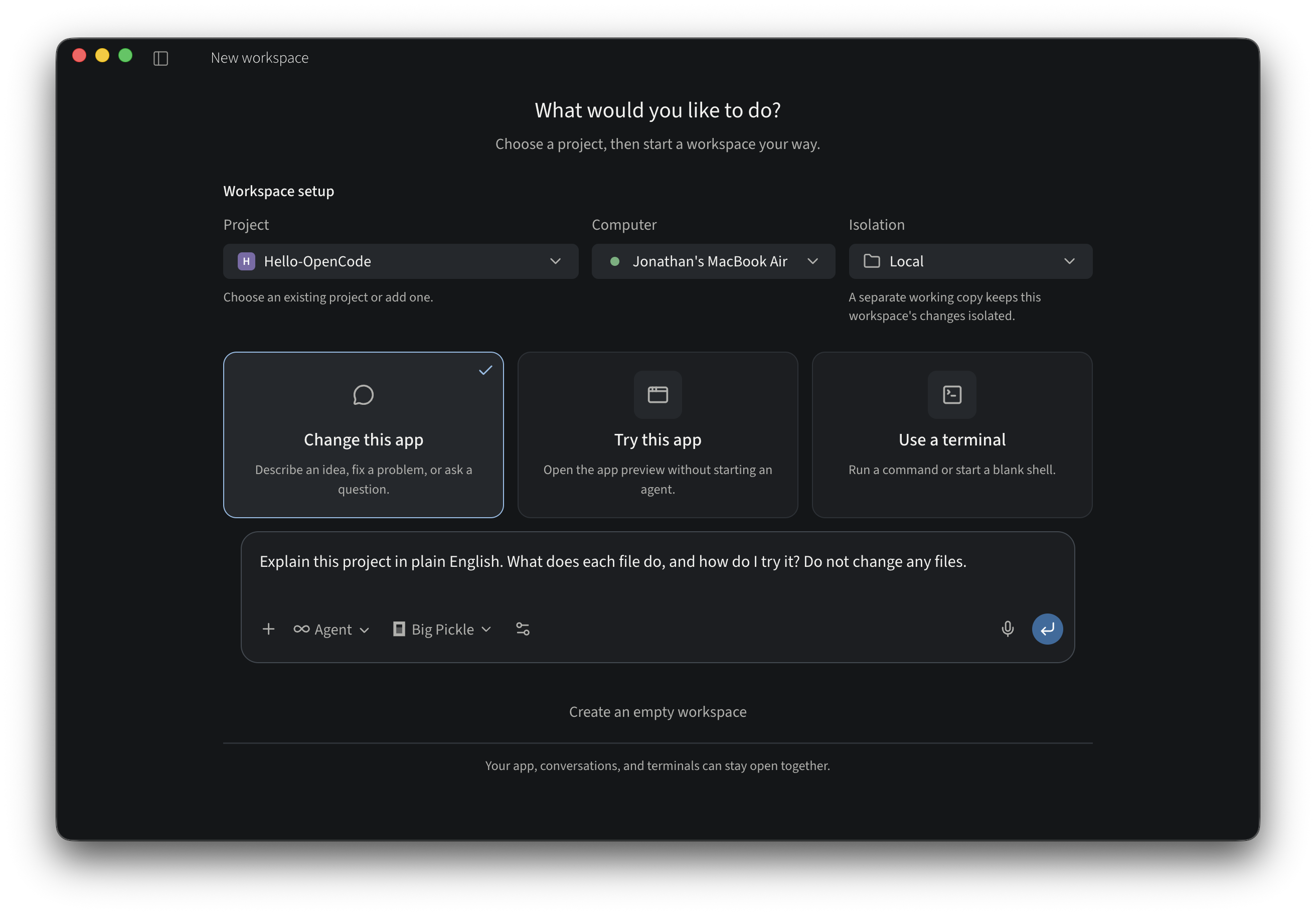
Press the send arrow. Reading tools in the conversation show which files OpenCode inspected. Let it finish, then read the answer. A working indicator means it is still doing work; it does not establish that the task succeeded.
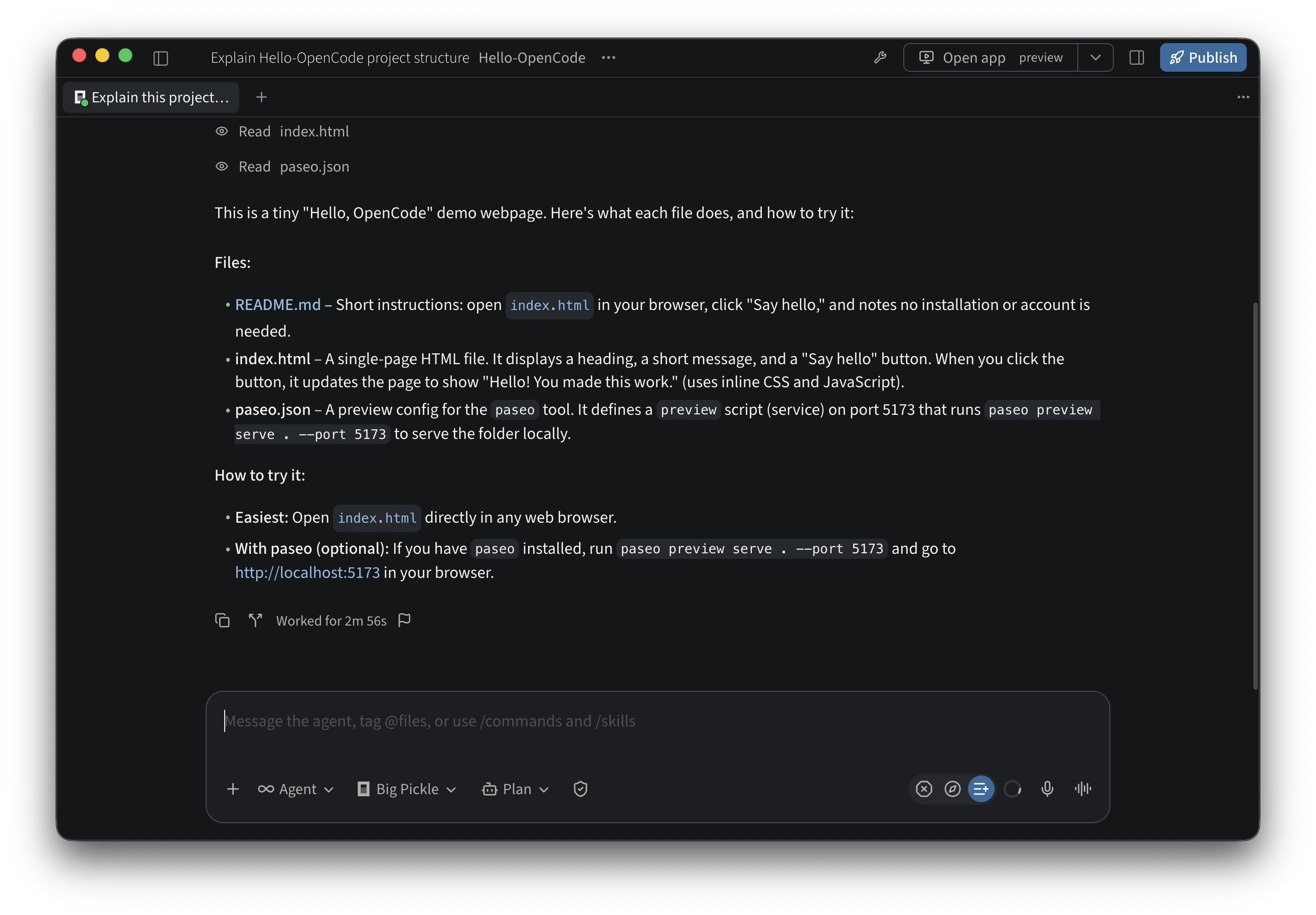
You can ask follow-ups in everyday language: “What is HTML?”, “Which file changes the button?” or “Explain that in fewer steps.” You can also point it at a particular file instead of asking about the whole project.
Step 5: make one small change and try it
Once you understand the project, switch to Build and give it one specific task. For the demo, ask:
In index.html, change the button label from “Say hello” to
“Say hello again”. Keep the click behavior and everything else
the same. Explain what you changed.
Read any requested file or command permission. When the response finishes, review the
file change and try the page. For a simple HTML file, you can open
index.html in a browser. In our Lyre example,
Open app uses the configured preview; choose
Start app if the preview is stopped.
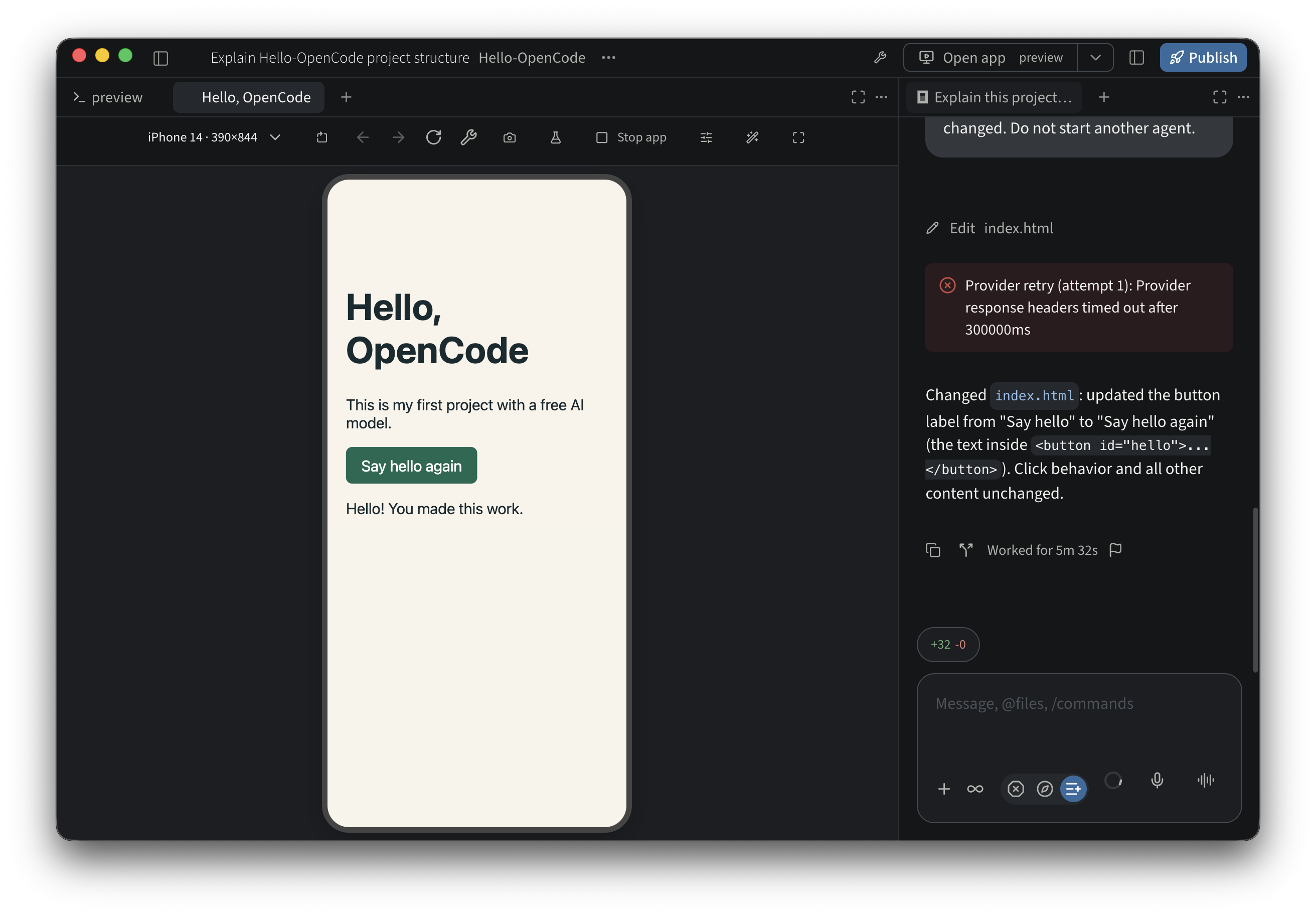
The phone frame here is Lyre’s desktop preview at 390 × 844. The visible greeting appeared after I clicked the edited button. Our edit was applied before a provider timeout; OpenCode’s automatic retry then completed the explanation. The screenshot keeps that retry visible.
Click the button yourself. Does the message still appear? An AI saying it changed the file is only one part of the job; trying the result tells you whether it behaves as intended. For a larger project, ask which existing tests to run and what they actually cover.
Keep requests small while learning. “Fix my entire app” gives the agent little direction. “When I press Save, show a confirmation message and keep my entered text” gives it a clear result to work toward.
Prefer to use OpenCode directly?
You can do the same kind of work without Lyre. In a terminal, move into your project folder and launch OpenCode with the model selected:
cd "/path/to/your/project"
opencode --model opencode/big-pickle
Replace the example path with your real folder. On Windows, use a path appropriate to
your terminal. Inside OpenCode, /models opens the model picker; choose the
free entry you intend to use. Its terminal interface uses Tab to switch
between its built-in Plan and Build agents.
Start with the same explanation prompt, then ask for one small change. OpenCode’s
optional /init command writes a project AGENTS.md with
guidance for the agent. If your project already has that file, inspect it before asking
an agent to update it. See the
official getting-started guide for
the complete flow.
You do not need to begin by purchasing credits or adding a paid provider key for the
clean Big Pickle route we tested. /connect is the separate setup path for
connecting providers. OpenCode’s general Zen key instructions include billing; they
should not be mistaken for a required step in this particular free walkthrough.
If something does not work
- Command not found: check the CLI installation and reopen your terminal. In Lyre, check the selected computer too.
- Model missing: refresh the list and check the current catalogue. Free offers can end.
- Rate limit or temporarily unavailable: wait and try again, or explicitly choose another currently free model. Avoid repeated rapid retries.
- A timeout after a file edit: check the conversation and changed file before repeating the request. The edit may already be saved. Let an automatic retry finish; if you stop a stalled task, inspect the result before asking it to continue.
- “Free tier can only be used from within OpenCode”: use the normal OpenCode client and check your version and configuration. We encountered this with a modified test configuration; the normal clean client succeeded. Do not treat the public model catalogue as a free API for arbitrary apps.
- Unexpected billing setup: pause and check the model and provider you selected. Paid Zen access and Go are separate from the route demonstrated here. If you choose to enable paid Zen later, review its auto-reload and spending controls.
- App will not start: ask for the project’s actual run instructions. Agent access and app preview readiness are different things.
You now have a useful starting loop: open a folder, choose a free model, ask it to explain the project, make one small change, and check the result. You can use that loop with your own work without first committing to an AI subscription.