Use Codex from your phone
Continue a host-backed Codex conversation from your phone, inspect its diff and test the change in a live preview.
On this page
Can I use Codex from my phone?
Yes. Connect your phone to your computer through Lyre and open an authorized Codex conversation. Codex and project commands run on the host computer; your phone controls the conversation and can interact with the app preview. Keep the host awake, online and running Lyre.
Prepare the host and phone
- Lyre installed on the computer containing your project. Check current downloads and device support before choosing a client.
- The browser client or a supplied compatible phone client. Follow device pairing rather than assuming a public mobile-store download is available.
- The host owner has connected Codex and checked its readiness in SettingsAI & agentsConnections. Follow the coding-agent setup guide on that computer.
- Explicit Developer access to the approved project, or Owner access on your own device. Pairing alone does not grant development access; review the device role. App-only access permits the shared app, without agents, source files or terminals.
- Keep the host awake, online and running Lyre. Prepare the project startup command if you want a preview; configure startup on the host.
Your provider account, subscription and API usage costs are separate from Lyre. Check the selected account before sending work. Off-network previews use the host account's application relay allowance; see current plan limits.
Continue work from the phone
-
Select the host and project
Connect through the phone's saved connection, then select the project in Library. For a first connection, use the pairing guide and have the owner approve the intended project scope.
-
Open the Codex conversation
Continue the existing conversation, or create one with Codex selected. Check its account and available model. Read the latest messages and current task status before adding work; a lost connection does not establish that the prior turn stopped.
-
Review before requesting another edit
Open Changes for the selected workspace. Ask Codex to explain the current diff if its purpose is unclear. Keep unrelated edits intact and use the existing approval flow for requested tool actions.
Example: change one line of website copy
A small copy edit gives you a concrete result to inspect from the phone. Use your project's actual headline; the following is an example prompt for a demonstration restaurant website.
Find the home page hero headline and show me its current text and file.
Do not change files. Identify the existing checks for this page.
After confirming the target, send:
Change only the hero headline to: A little coastal comfort.
Preserve the layout, menu behavior and unrelated edits.
Run the smallest relevant existing checks, and tell me what changed,
what ran and anything you could not verify.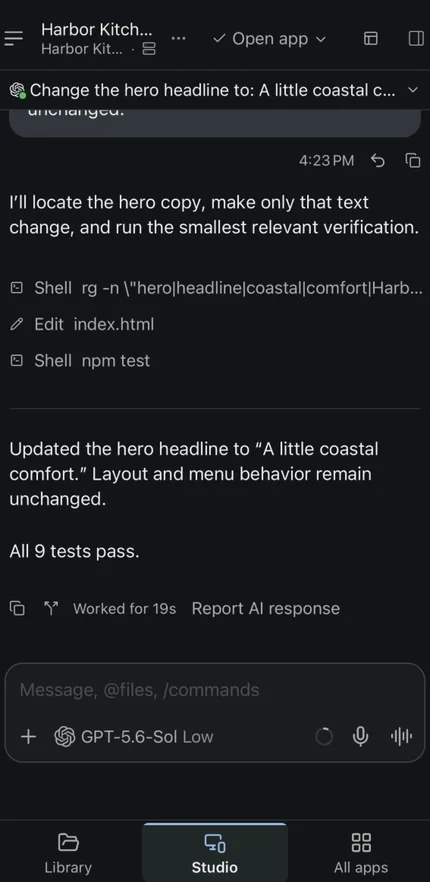
The screenshot illustrates a recorded copy-edit workflow. Your filenames, checks and provider response depend on your project and selected setup.
Verify the copy edit and reconnect path
-
Read the exact diff
In Changes, confirm that only the intended headline changed and unrelated work remains intact. Read the diff and Git guide before staging or committing.
-
Open the live website
Choose Open app and read the headline on the phone. Check wrapping and navigation, then inspect the actual test output. An agent report, commit or running process alone is not a passing application check. Open a preview.
-
Test the connection you will use
After a working local test, reconnect on mobile data if you need off-network work. Confirm that you reach the same host, conversation and preview. See remote connection checks.
The intended Codex conversation is reachable, the diff matches your request, the checks have recorded results, and the new headline appears and remains readable in the interactive phone preview.
Recover without duplicating work
- The computer is offline
- Check host power, sleep, network and whether Lyre is running, then reconnect. Follow offline-host recovery. A phone cannot continue through an unreachable host.
- Codex is unavailable or refuses a request
- Ask the host owner to check installation, sign-in, account quota and model readiness in provider recovery. Reconnecting the phone does not replenish provider usage.
- The agent needs permission
- Read the command, files and scope in the provider approval flow. Developer operations are limited to approved projects, but allowed commands execute under the host account. A prompt or task mode does not grant permission.
- The preview fails or the phone disconnects
- Check the saved start command and terminal output on the selected host. After restoring connectivity, inspect the existing conversation and process before sending the task again or starting another copy. See preview recovery.
Stop the task or revoke device access
To stop a turn, use the conversation's Stop control and inspect its resulting state. Closing the conversation or disconnecting the phone does not mean the agent or app has stopped. App and Agent have independent lifecycles.
To remove the phone's authority, the host owner opens Pair device and revokes the relevant device grant. Check that the phone can no longer reopen that project. See remove a device; uninstalling the phone client does not revoke its access.